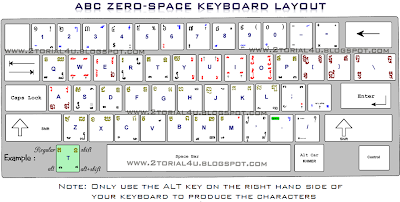
អក្សរ​ពុម្ព​ ABC-ZeroSpace នឹង​ រូប​ភាព​ខ្ទង់​វាយ​​អក្សរ​

សូម​ចុច​ទាញ​យក អក្សរ​ពុម្ព​ ABC-ZeroSpace នឹង​ខ្ទង់​វាយ​របស់​វា ABC-ZeroSpace Keyboard Layout

របៀប​បញ្ចូល​ សំរាប់​ Windows XP
  1.  ចុច Start --» Control Panel
  2. ចុច Switch to Classic view
  3. ចុចលើ Fonts
  4. ចុច File --» Install New Font...
  5. ចុច​រុក​រក​ទី​កន្លែង​ដែល​ប្រិយមិត្ត​បាន​រក្សារ​អក្សរ​ពុម្ព​ ABC-ZeroSpace ទុក
  6. ចុច Select All រួច​ចុច​ OK ដើម្បី​បញ្ចូល​ខ្ទង់​អក្សរ​ជា​កិច្ច​សម្រាច់ 
មុន​នឹងប្រើ​​​រូប​ខ្ទង់​អក្សរ​ពុម្ព​ ABC-ZeroSpace នេះ​   សូម​​កែរ​តម្រុង​ខ្ទង់ Keyboard ក្នុង​​កំ​ព្យូទ័រ​ទុក​ជា​មុន​សិន​ ទើប​អាច​​ប្រើ​ប្រាស់ដោយ​មិន​ចាំ​បាច់​ផ្លាស់​ផ្តូ​ច្រើន​សារ​ពេល​ប្រើ​ប្រាស់​អក្សរ​ពុម្ព​នេះ      សូម​ប្រិ​យមិត្ត​ ​ធ្វើ​តាម​ការ​ណែរ​ណាំ​ខាង​ក្រោម ។

សម្រាប់​ OS Windows XP
  1.  ចុច Start --» Control Panel
  2. ចុច Regional and Language Options
  3. ច្រើសរើសយក Languages
  4. ចុច​យក Detail...
  5. សម្រាប់​ប្រអប់​ Setting ខាង​ក្រោម​ Installed services សូម​ចុច​លើ EN English (United State) រួច​ចុច​ Add...
  6. ឆែក​យក​ Keyboard layout/IME
  7. ចុច​លើ​សញ្ញា​ព្រួញ​ដើម្បី​ស្វែង​ជ្រើស​យក United States-International រួច​ចុច​ OK
  8.  ក្នុង​ប្រ​អប់​ Setting ដដែល ខាង​​ក្រោម Default input language, ​ចុច​លើ​សញ្ញា​ព្រួយ​រួច​ជ្រើស​រើស​យក​ English (United States)-United States International
Download ABC-ZeroSpace Keyboard Layout

Comments

Popular posts from this blog

TYPE KHMER UNICODE IN WINDOWS VISTA/7

Updated June 20th, 2014: Keyboard Layout The following are steps you need to do to config on your Windows Vista/7 in order to be able to type Khmer language in any forum support Khmer Unicode or in any typing application in your computer. 1. click START ----» CONTROL PANEL 2. click on CLOCK, LANGUAGE, AND REGION icon 3. click on REGIONAL AND LANGUAGE OPTIONS 4. click on KEYBOARDS AND LANGUAGE tab and click on CHANGE KEYBOARDS... button 5. in GENERAL tab, click on ADD... button 6. scroll down look for KHMER (CAMBODIA) and click on the (+) sign to expand the the field and check KHMER 7. click OK or APPLY as many time as need to save and exit ..... Khmer Keyboard is now added to your computer..... In order to type Khmer Unicode, look down to your right-hand corner of your computer and select KH (CAMBODIA) and have fun typing You can find where are all the character locate in your Keyboard by open the PDF file i attach at the bottom of this blog... If...

Steps to create a YouTube channel

Go to www.youtube.com in your web browser. Click the "Sign In" button in the top-right corner of the screen. Sign in with your Google account. If you don't have a Google account, click the "Create Account" button and follow the prompts to create one. Once you're signed in, click on the three horizontal lines in the top-left corner of the screen to open the YouTube menu. From the menu, click "My channel." You will be asked to set up your channel. Follow the prompts to enter your channel name and other information. You'll need to upload a profile picture and a cover photo for your channel. Click on "Customize Channel" to upload these images. Once you've customized your channel to your liking, click the "Save" button. Congratulations! You have successfully created a YouTube channel. To start uploading videos, click the "Create" button in the top-right corner of the screen and follow the prompts to upload your vid...

NIDA-Khmer Keyboard for Windows 7

If your  already memorize all the keyboard layout of Nida 1.0 and you hate memorizing a new set of keyboard layout when switching to Windows 7, this step will guide you through the installation of Nida  Keyboard layout 1.0  to Windows 7.  This is how i done it.  If you have and question,  just drop me a line. For Windows Vista, i'm not too sure yet, i will put a tutorial when i have the information. For Windows 7: 1. Download and extract the zip file and save it on your desktop NIDA-KhmerKbd-1.0.zip 2.  Open the NIDA-KhmerKbd-1.0.2 folder on your desktop. Right click on KhmerKbd.msi file and chose Troubleshoot Compatibility and wait for the system to correct the issue 3.  After done, click on Start the Program... button 4. Look for window to pop up and click on Repair Khmer Unicode Keyboard (NIDA 1.0) and click Finish .  Another window should pop that said Installation Complete . now follow this step to config it 1. clic...